LinkedIn: publish straight from your signals
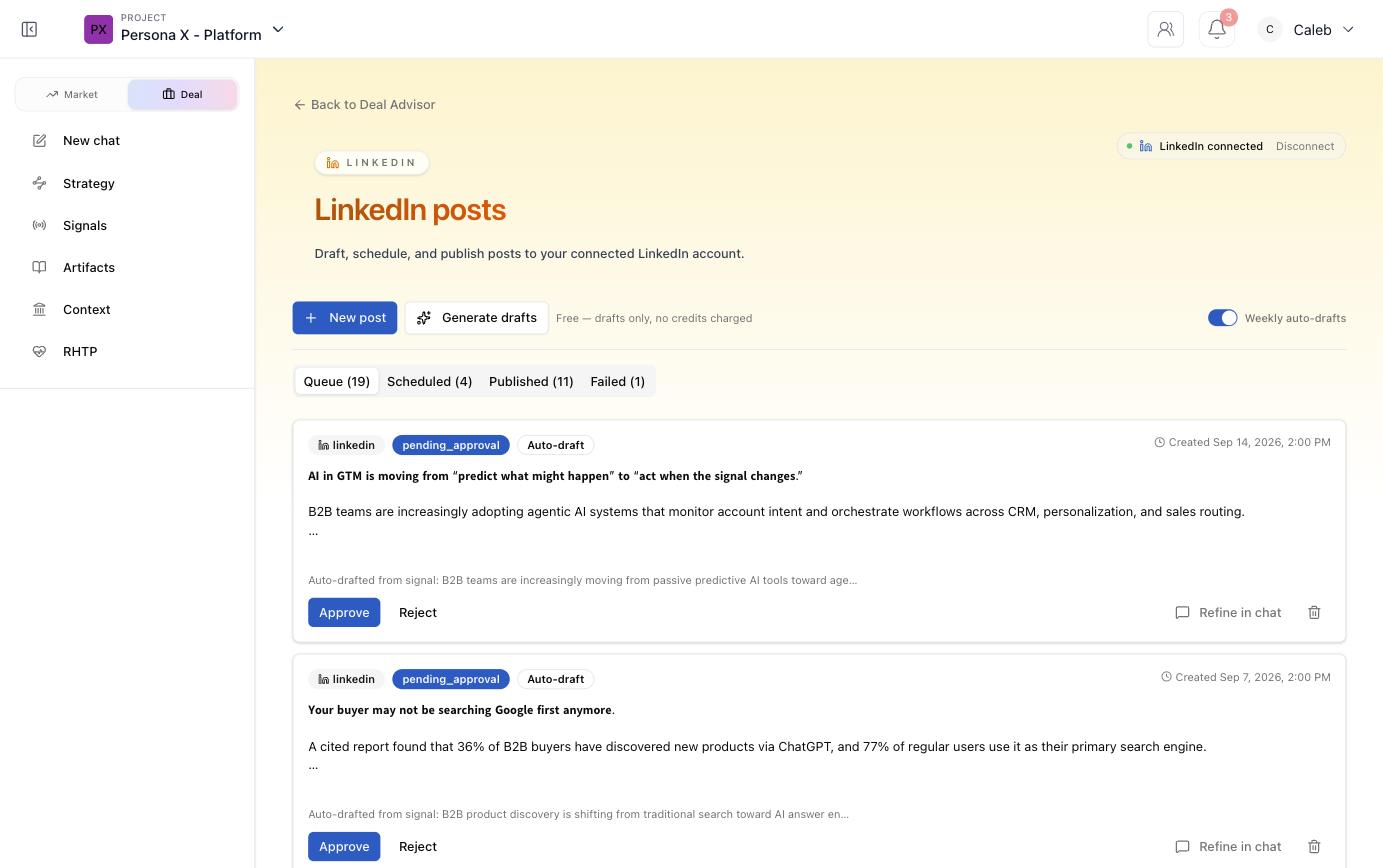
The LinkedIn tab drafts, schedules, and publishes posts to your connected LinkedIn profile — including a standing weekly auto‑draft pipeline sourced directly from what Signals is picking up.
Connecting LinkedIn
A status chip at the top‑right of the page shows LinkedIn connected (with a Disconnect option) once you've authorized your account. This connection is managed once, workspace‑wide, from Connectors — see that page for details.
Four queues
Posts move through four tabs, each labeled with a live count:
| Tab | Meaning |
|---|---|
| Queue | Drafts awaiting your Approve or Reject decision. |
| Scheduled | Approved posts with a publish time set. |
| Published | Posts that have gone out to LinkedIn. |
| Failed | Posts that didn't publish successfully. |
Creating posts
New post
Write and publish a post yourself from scratch.
Generate drafts
Ask Persona X to draft new post candidates on demand — free, drafts only, no credits charged.
A Weekly auto‑drafts toggle, on by default, keeps a standing supply of drafts coming in automatically — each one generated from a specific Signals theme and labeled Auto‑draft, with the originating signal named in a caption under the post ("Auto‑drafted from signal: …").
Reviewing a draft
Every queued post shows its status (pending_approval), its origin tag (Auto‑draft
or manually written), and the timestamp it was created. Three actions sit under each one:
- Approve — move it toward scheduling/publishing.
- Reject — discard it.
- Refine in chat — open a chat to adjust the copy before deciding.