Your workspace, and setting up your first project
Everything in Persona X hangs off two containers: a workspace (your company or team account) and one or more projects inside it (a market, product line, or client engagement). This page covers the workspace home screen and creating a project.
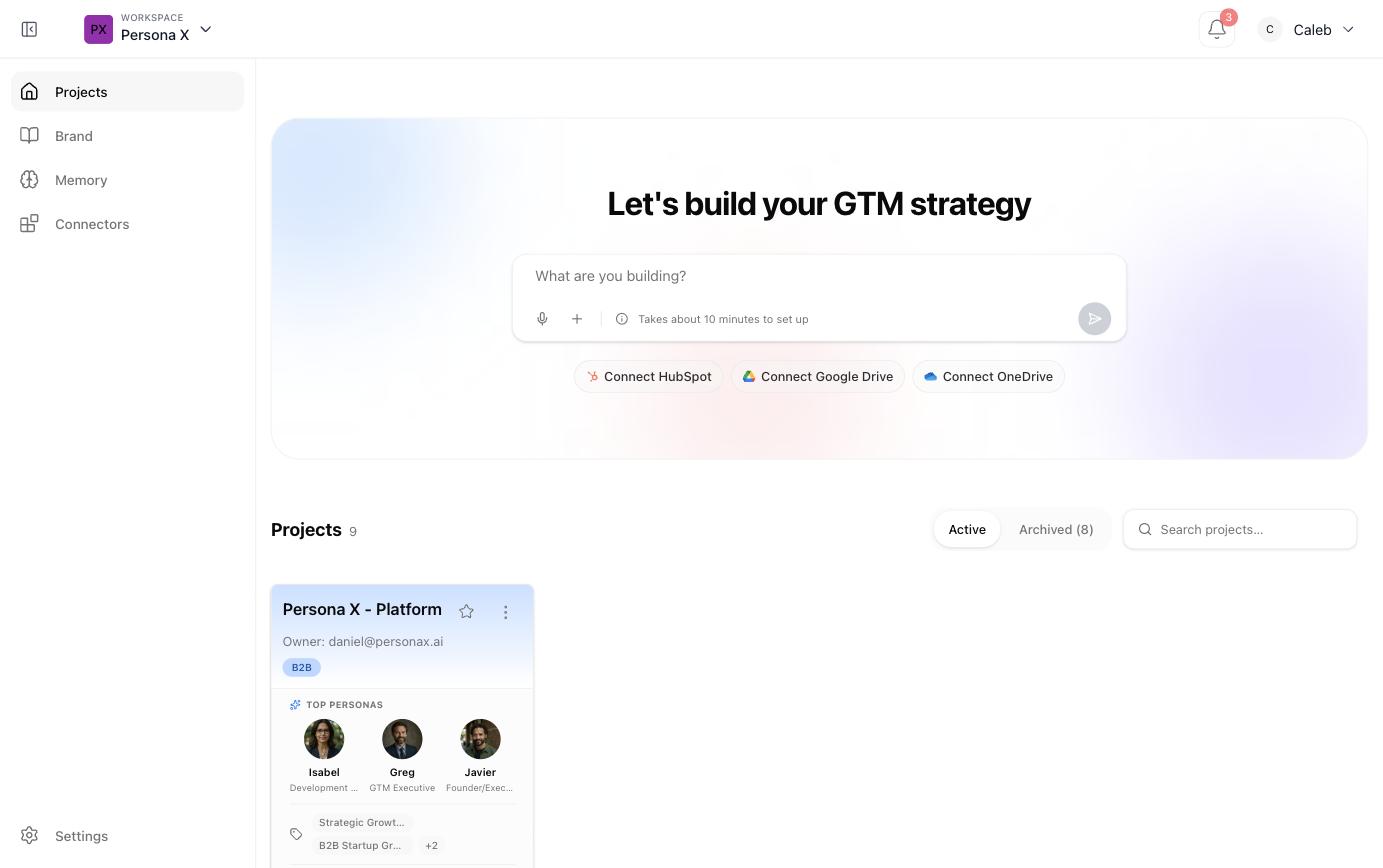
The workspace sidebar
At the workspace level (before you open a specific project) the left sidebar has four sections, plus account Settings at the bottom:
| Section | What it's for |
|---|---|
| Projects | Home screen: start a new project, connect data sources, and see every active/archived project. |
| Brand | The workspace‑wide brand identity, brand chat, brand library, and brand assets. Shared by every project. See Brand. |
| Memory | The workspace‑level GTM Brain: facts believed with high confidence across every project. See Workspace Memory. |
| Connectors | CRM and data‑source connections (HubSpot, Google Drive, OneDrive/SharePoint, Notion, LinkedIn, RHTP, Salesforce) managed once for the whole workspace. See Connectors. |
Creating a project
The home screen leads with a single prompt — "Let's build your GTM strategy" — with a text box asking "What are you building?". Describe the product, market, or engagement in your own words (or use the mic to talk it through) and Persona X spins up a new project shell: an empty GTM Brief, empty ICPs, and an empty Knowledge Bank, ready to fill in. The product sets expectations up front that this takes about ten minutes.
- Describe what you're building. Type or dictate it into the "What are you building?" box on the Projects home screen.
- Connect a data source (optional but recommended). One‑click buttons for HubSpot, Google Drive, and OneDrive sit right under the prompt — connecting here lets Persona X ground your strategy in real CRM and document data instead of starting from a blank page.
- Land in the project. You're dropped into Market mode inside the new project, ready to build out your Strategy.
Switching projects
Once inside a project, click the project name at the top‑left (next to the PX mark) to jump back to the workspace, or use the dropdown next to it to switch directly to another project without leaving the current view.
Next: two ways of working
Once a project exists, everything you do inside it happens in one of two modes, switched with a toggle at the top of the left sidebar: Market and Deal. The next page walks through what each one is for.